


7 business travel trends
to act on now
to act on now



Lorem ipsum es un texto de marcador de posición. Save Your Spot
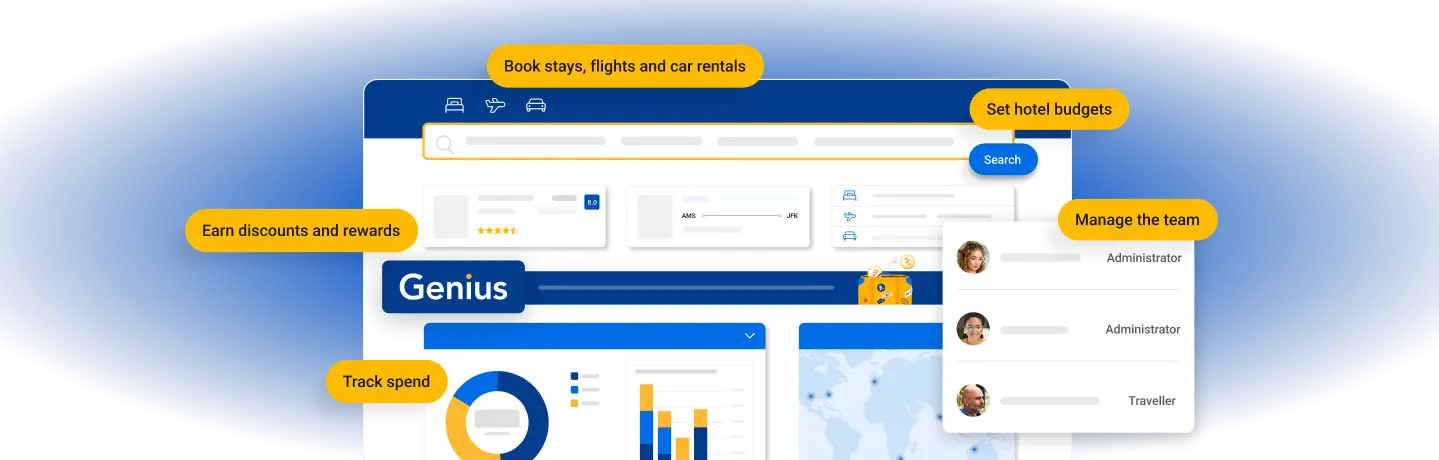


You make travel happen in your company. You want the best rates and travel options in one quick, smooth booking process. And you’ll be keeping an eye on traveller whereabouts and spend.
In the Booking.com for Business world, you’re an Administrator. You set up the account and have full access, including the ability to assign roles to everyone else.
If this sounds like you, start your Administrator setup now. You can always come back here for guidance on more features.

In your company, you’re often on the move, travelling near and far.
In the Booking.com for Business world, you’re a Traveller. You’re in control of your profile, and if your company Administrator gives you access, you can book and manage your own trips.
If this sounds like you, start your Traveller setup now. You can always come back here for guidance on more features.
Do the essential setup first to get your account up and running, then follow the management setup to take your account to the next level with features designed especially for streamlining business travel.
Here’s the fundamental company information you need to add to your Booking.com for Business account to start booking flights, accommodation and car rentals for yourself.
When you signed up, you provided some company information. As Administrator, you can update these details anytime.
You can add your company logo on the ‘Company details’ page. It will then appear on everyone’s dashboard and help your team distinguish between this corporate account and their personal Booking.com accounts.
When you created your Booking.com for Business account, you most likely selected your main country. If your workforce operates in more than one place, you (as Administrator) can add these countries too. Then staff can choose the right country when they join the account and arrangers can select the correct one for each booking.
You can choose your on-screen language from those available: Dutch, English, French, German, Italian, Polish, Portuguese and Spanish.
Everyone who joins your account has a personal profile – including you. It’s where you can add and update your photo/avatar and contact details, and add travel document information, your personal credit card details and more.
Adding credit cards saves you time when making bookings and gives the company payment flexibility. For instance you and Arrangers can pay on behalf of Travellers, or you can ask a team member to pay with their own card and reimburse them later.
Booking.com for Business bookings have to be paid with a credit card. Accepted cards are: American Express, Mastercard, Visa, Diners Club International, and AirPlus Virtual Cards.
As Administrator, you can save up to four cards to your Booking.com for Business account that you, Arrangers and Travellers can choose from when making a booking. Only enough information is shown to be able to select the right card. Once a card is saved, it’s easy to change details or remove it if it has expired.
You and your team members can each save credit cards to your own account profiles. Card details saved to an individual profile can only be seen and used by that individual.

With your essential information set up, you’re ready to book your first work trip. From your dashboard, click ‘Book a trip’ or the Booking.com for Business logo to start searching.
If your colleagues will use Booking.com for Business too, please continue with the management setup. It covers how to invite other team members and activate more features to help your company save time and money.
After completing the essential setup, you can activate more features to speed up bookings for yourself and your team, and get more visibility over your company’s business travel.
Everyone who uses Booking.com for Business needs a role. These roles are important because they help each person have the account access they need to do their job and organise their travel efficiently. The person who creates a company’s account is automatically assigned to the Administrator role. Here are all the roles and what each can do.


Administrators have full access. They can book travel for themselves and others, view all bookings, and make changes for themselves and others. They can also invite and add colleagues, update profiles, manage company details, add company-wide payment methods and set hotel budgets.


A person with this role – which is great for a company travel manager – can make bookings for themselves and anyone in the company. They can also see all bookings. They can use the payment methods you’ve set up but they can’t update saved credit card or company settings.


Traveller is the default role assigned to colleagues when they’re invited to join the company account. They can make and manage their own bookings and manage their profile details. They can’t see anyone else’s bookings. This role gives colleagues autonomy over their own work trips.


A commuter can view their itineraries and update their profile, but can’t make or change their bookings


A guest traveller is someone like a contractor or consultant who doesn’t have a profile in the company’s Booking.com for Business account, but who an Administrator or Arranger would like to book travel for.
| Guest Traveller | Commuter | Traveller | Arranger | Administrator | |
|---|---|---|---|---|---|
| Travel | |||||
| Update your profile | |||||
| Make and change bookings for yourself | |||||
| Make and change bookings for everyone | |||||
| View everyone’s bookings |
Everyone who uses Booking.com for Business needs a role. These roles are important because they help each person have the account access they need to do their job and organise their travel efficiently. The person who creates a company’s account is automatically assigned to the Administrator role. Here are all the roles and what each can do.
One of the most important features of Booking.com for Business is the ability to add or invite your colleagues to your account. When team members have their own profile, their details are saved. That means you, Arrangers or individual Travellers don’t need to manually input information for each booking.
Everyone can stay on top of their own itineraries and you can monitor locations and spend.
As Administrator, you can add or invite colleagues and manage team details and roles.
When you add someone, you create their profile and assign their role. You’ll need their first name, last name and email address. We’ll then send them an email with login instructions.
We’ve created a spreadsheet template so you can add many people at once.
When you invite someone, they’ll receive an email with instructions on how to sign in and create their profile for themselves. They’ll automatically be assigned the Traveller role (you can change this at any time in the future).
Before anyone can self-register, you have to activate the option in your account.
As Administrator, you can view who’s been added, edit names, change user roles, and remove people who are no longer with the company.
As Administrator, you can save the addresses of up to five accommodation properties that you or your team travel to often. All users can access these saved addresses during accommodation searches.
This feature saves search time if you’ve got preferred hotels near office or client locations, or regular event venues
For better visibility into why trips are taking place, Administrators can activate the ‘Reason for travel’ feature.
Once activated, every user will be prompted to provide a reason before they can complete their booking.
As Administrator, you can set upper limit accommodation budgets by country to have better control over spend, while still giving your travellers choice.
When travellers search for a stay, any property that’s over the budget will be visually flagged. You can edit a hotel budget amount or delete the budget for a country at any time.
Here’s the fundamental information you need to add to your account, plus some of the important features that will help you get to know and use Booking.com for Business to book flights, accommodation and car rentals for yourself.
If you travel to more than one country, you can change the location as necessary for each booking.
Your Administrator can add company credit cards to your account to help you save time when making bookings. If you’ve been given permission to use a card or cards, you’ll have the option to select them during the booking process. You can also save a credit card to your own profile that only you can see and use.
Booking.com for Business bookings have to be paid for with a credit card. Accepted credit cards are: American Express, Mastercard, Visa, Diners Club International, and AirPlus Virtual Cards.
Your Administrator can save up to five accommodation addresses to make it easy for you to select properties you and your colleagues travel to often.
This feature saves search time if you’ve got preferred hotels near office or client locations, or regular event venues.
Your Administrator can set upper limit accommodation budgets by country to give you choice while minimising spend
When you search for a stay, any property that’s more than the budget will be visually flagged. While you won’t be blocked from booking any accommodation, you can decide to choose a different property.
With your essential information set up, you’re ready to book your first work trip. From your dashboard, click ‘Book a trip’ or the Booking.com for Business logo to start searching.
If your colleagues will use Booking.com for Business too, please continue with the management setup. It covers how to invite other team members and activate more features to help your company save time and money.
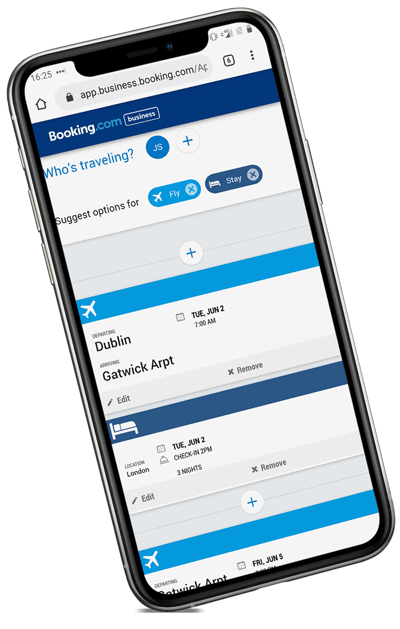
All the choice that Booking.com offers is here, along with the Genius loyalty programme, verified traveller reviews and the ability to filter by budget, amenities and ratings.



Lorem ipsum dolor sit amet consectetur adipisicing elit. Mollitia eveniet eum velit illum tempore perspiciatis officiis porro. Quos illum optio ratione odio molestias, exercitationem et atque ullam consequatur excepturi perspiciatis?
Lorem ipsum dolor sit amet consectetur adipisicing elit. Mollitia eveniet eum velit illum tempore perspiciatis officiis porro. Quos illum optio ratione odio molestias, exercitationem et atque ullam consequatur excepturi perspiciatis?

Lorem ipsum dolor sit amet consectetur adipisicing elit. Mollitia eveniet eum velit illum tempore perspiciatis officiis porro. Quos illum optio ratione odio molestias, exercitationem et atque ullam consequatur excepturi perspiciatis?

Lorem ipsum dolor sit amet consectetur adipisicing elit. Mollitia eveniet eum velit illum tempore perspiciatis officiis porro. Quos illum optio ratione odio molestias, exercitationem et atque ullam consequatur excepturi perspiciatis?

Lorem ipsum dolor sit amet consectetur adipisicing elit. Mollitia eveniet eum velit illum tempore perspiciatis officiis porro. Quos illum optio ratione odio molestias, exercitationem et atque ullam consequatur excepturi perspiciatis?
Lorem ipsum dolor sit amet consectetur adipisicing elit. Mollitia eveniet eum velit illum tempore perspiciatis officiis porro. Quos illum optio ratione odio molestias, exercitationem et atque ullam consequatur excepturi perspiciatis?
Lorem ipsum dolor sit amet consectetur adipisicing elit. Mollitia eveniet eum velit illum tempore perspiciatis officiis porro. Quos illum optio ratione odio molestias, exercitationem et atque ullam consequatur excepturi perspiciatis?
Lorem ipsum dolor sit amet consectetur adipisicing elit. Mollitia eveniet eum velit illum tempore perspiciatis officiis porro. Quos illum optio ratione odio molestias, exercitationem et atque ullam consequatur excepturi perspiciatis?
Lorem ipsum dolor sit amet consectetur adipisicing elit. Mollitia eveniet eum velit illum tempore perspiciatis officiis porro. Quos illum optio ratione odio molestias, exercitationem et atque ullam consequatur excepturi perspiciatis?
Lorem ipsum dolor sit amet consectetur adipisicing elit. Mollitia eveniet eum velit illum tempore perspiciatis officiis porro. Quos illum optio ratione odio molestias, exercitationem et atque ullam consequatur excepturi perspiciatis?